Details of Orders
Get to know what orders consist of
After booking a placement, an order with the status To Publish appears in every campaign of your current organization. Click on the order card to view all its details and activities.
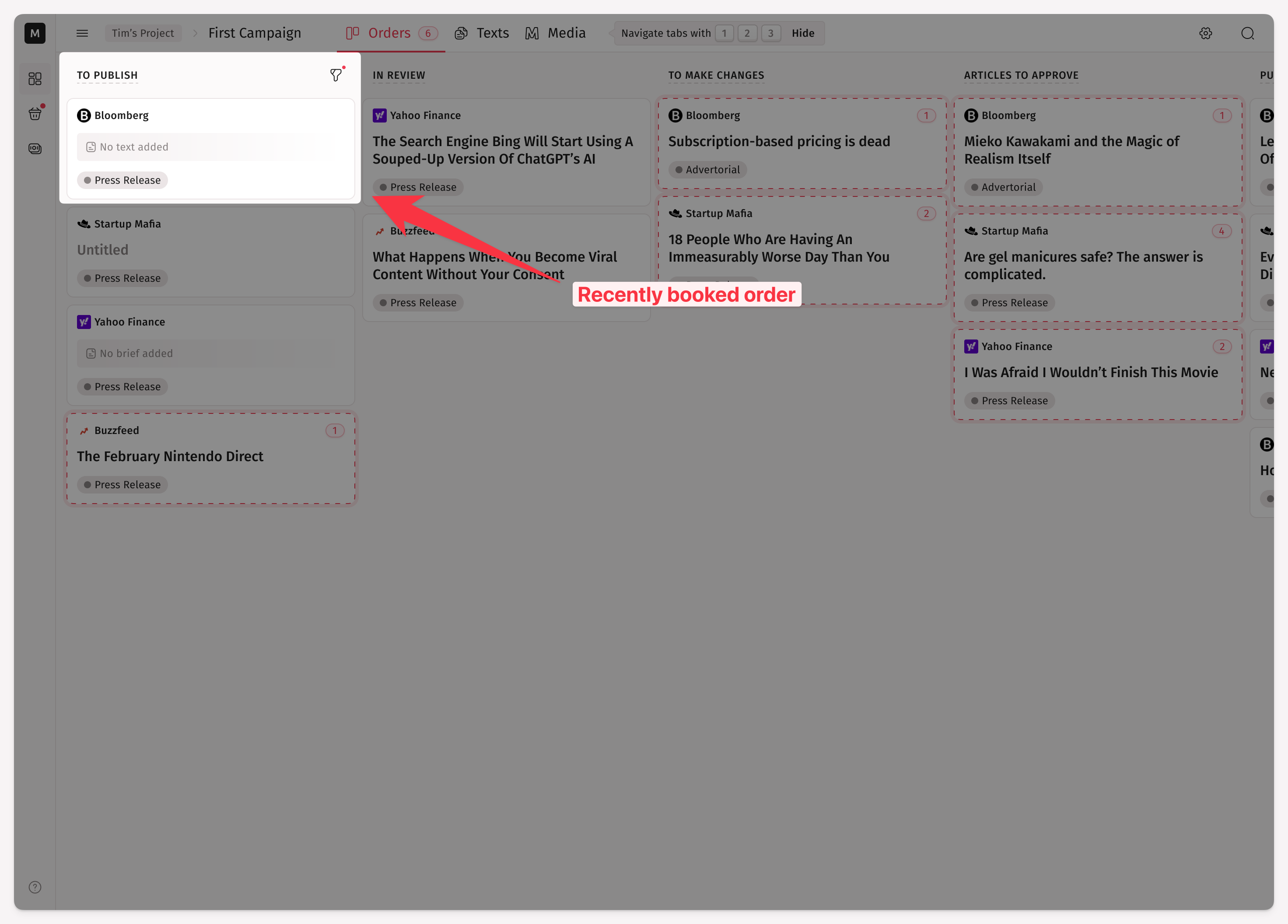
What Is Inside an Order
Inside of an order you can see:
Content you want to have published
The customizable publishing date to set a deadline or an embargo date
The placement conditions set by the media for this particular format
Order activities and chat
Order ID, which can be useful when resolving issues with an order with our support team.
How to Add Content to an Order
Before you can send the order to the media, you need to add content you want to have published. For that, you have the content editor right in the order drawer.
Bear in mind that you can't edit your content after it is sent for review. However, you can still send a message to the publisher within this order to ask him to reject the reviewed content and get it back to make changes.
How to Set Up a Deadline or an Embargo Date
Before content is sent for review, you can also change the date you want the content to be published. There you have two options:
Onto set up a particular date as a deadlineAfterthe embargo to make sure your content will be published only after a particular date
You can choose any publishing date you want except weekends and in the past.
What Are Order Activities
Order activities are a log of all actions taken with a particular order, such as booking it, sending it to review, declining, etc. Here, you can also see exactly who on your team has done something.
How to Share an Order with Team Members
To share an order with someone who has access to the parent project, click the copy link button in the order header.
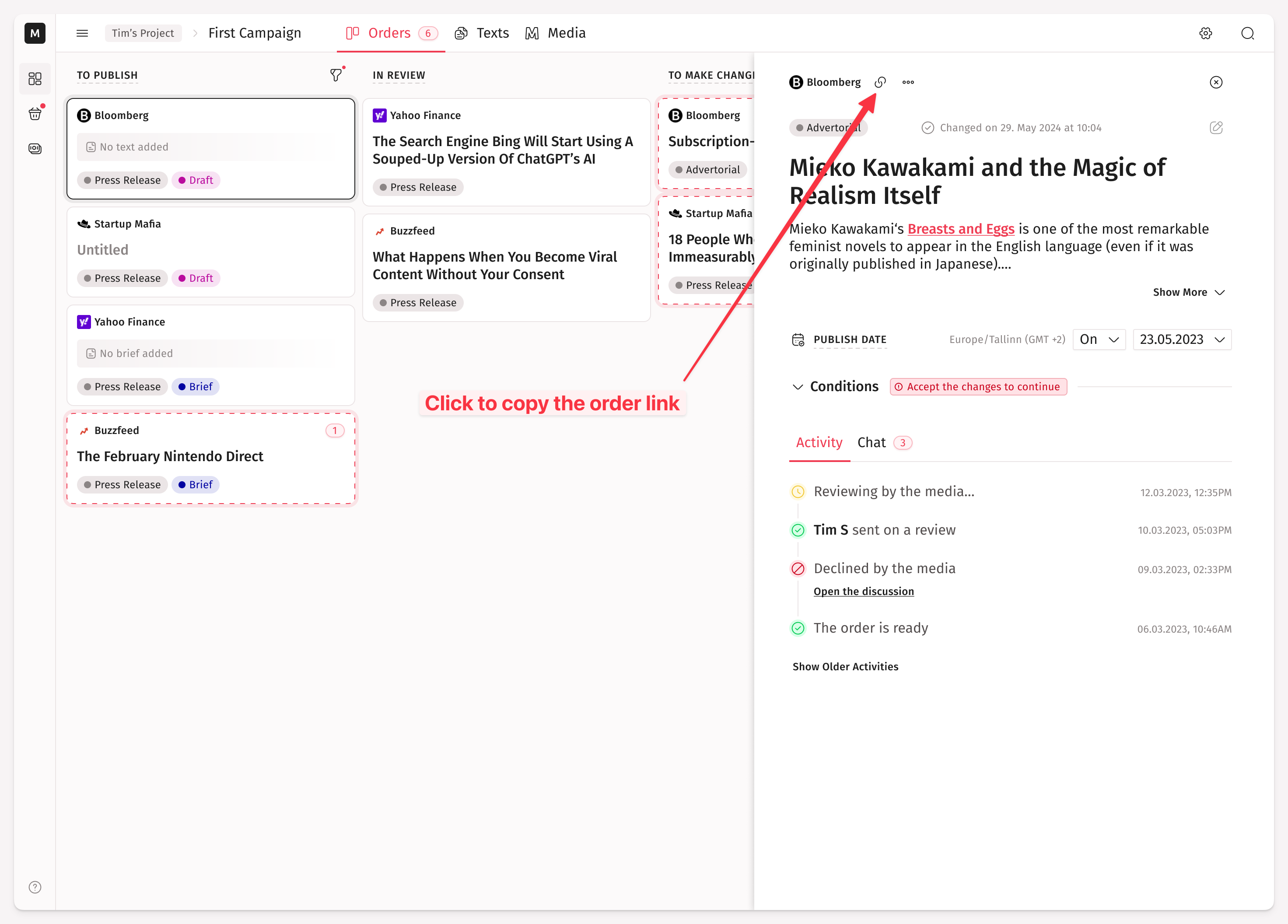
How to Find Order ID
To find an order ID, click the button ... in the order header and see the option Copy Order ID.
How to Communicate with a Media
Every order has a dedicated chat where you and the publishers on the other side can communicate with each other. Just switch the tab from Activity to Chat to open it. For resolving any issues with an order, we recommend first trying to chat with the media side before cancelling the order.
The chat is open even if you haven’t yet sent an order to the publisher for review. In this case, the publisher can communicate with you but can’t process the order until you send it to them for review.
How to Request Changes from a Media
When a media sends you a link to published content, you have two days to request additional changes. To do so, click Request Changes instead of Approve and write in the chat what exactly you want to change.
NB: Any changes should follow the placement conditions and can also be rejected by the media if they are deemed inappropriate.
What If the Conditions Were Changes
In some cases, a publisher can change the placement conditions before you start working on the order. In this case, we give you a choice to agree with the new conditions and, if needed, to pay more or to decline them and cancel your order. In the latter scenario, your booking money will also be unfrozen on your balance.
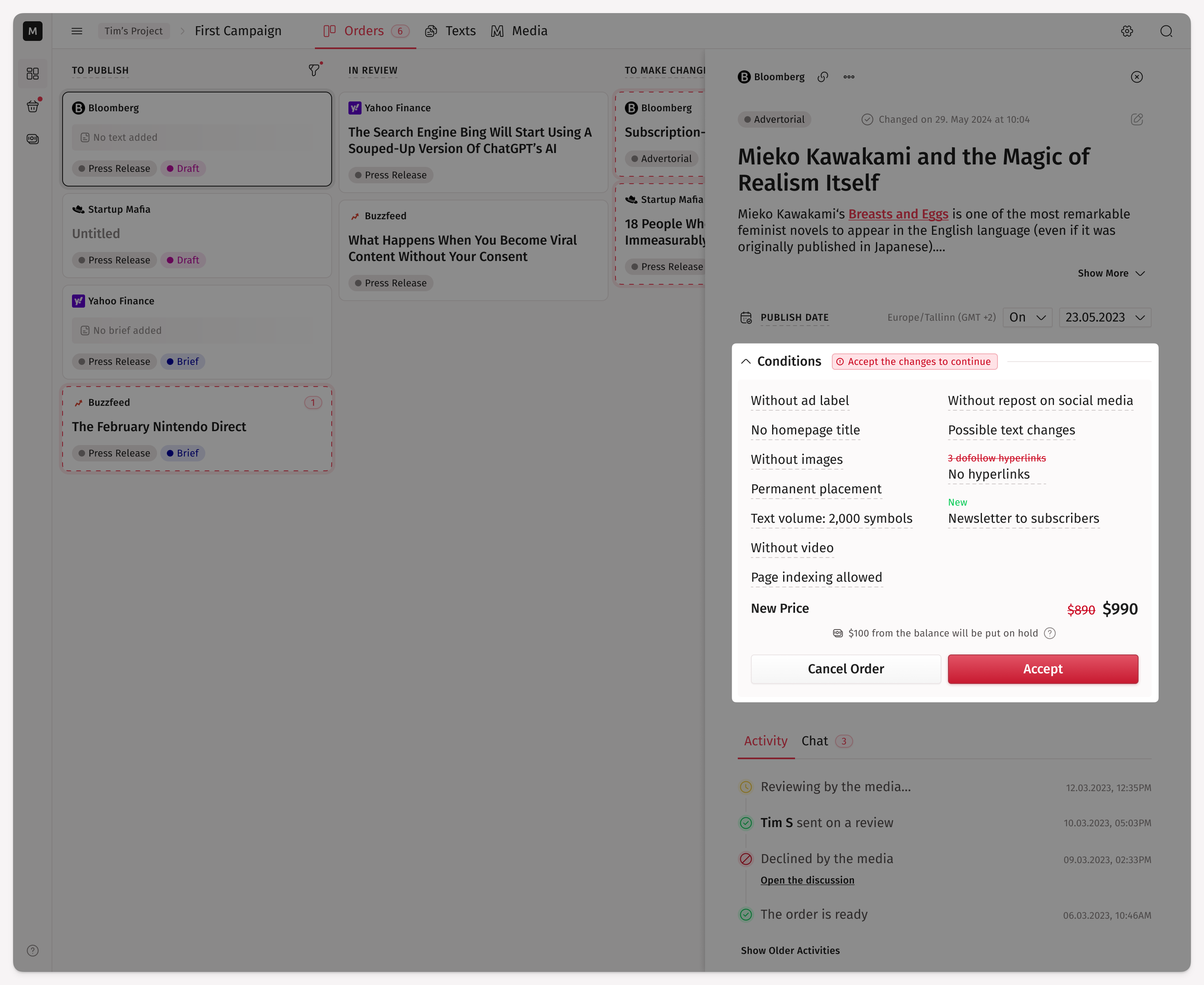
Here is an example of price recalculations when the price changes for one of booked orders:
Old Price = $100
Paid Fee = 15%, with a minimum fee of $20, resulting in a $20 fee.
New Price = $200Let's start with the client's service fee (the actual fee might differ from the example):
10% of $200 = $30, which is above the minimum fee, so the fee is $30.
Since we have already paid a $20 fee, we need to pay an additional $10 fee plus the $100 for the product price, totaling $110.Thus, even if we canceled the order and repurchased it, the final amount charged would be the same: $
200 + $30 = $230.