Bulk Media Upload
How to add multiple media at once
Batch upload is now a request-only feature. By default, clicking Add Media takes you straight to the single media setup flow. Batch (list) upload is enabled only for approved publishers. If you need to add many sites at once, contact the Medialister team to request access via [email protected].
Note: Bulk (list) media upload is currently available to select publishers. If your account has access, the steps below apply. If not, clicking
Add Mediatakes you directly to the single media setup flow. Reach out to your Medialister contact if you'd like access to bulk upload.
Once your account has batch upload enabled, here's how it works:
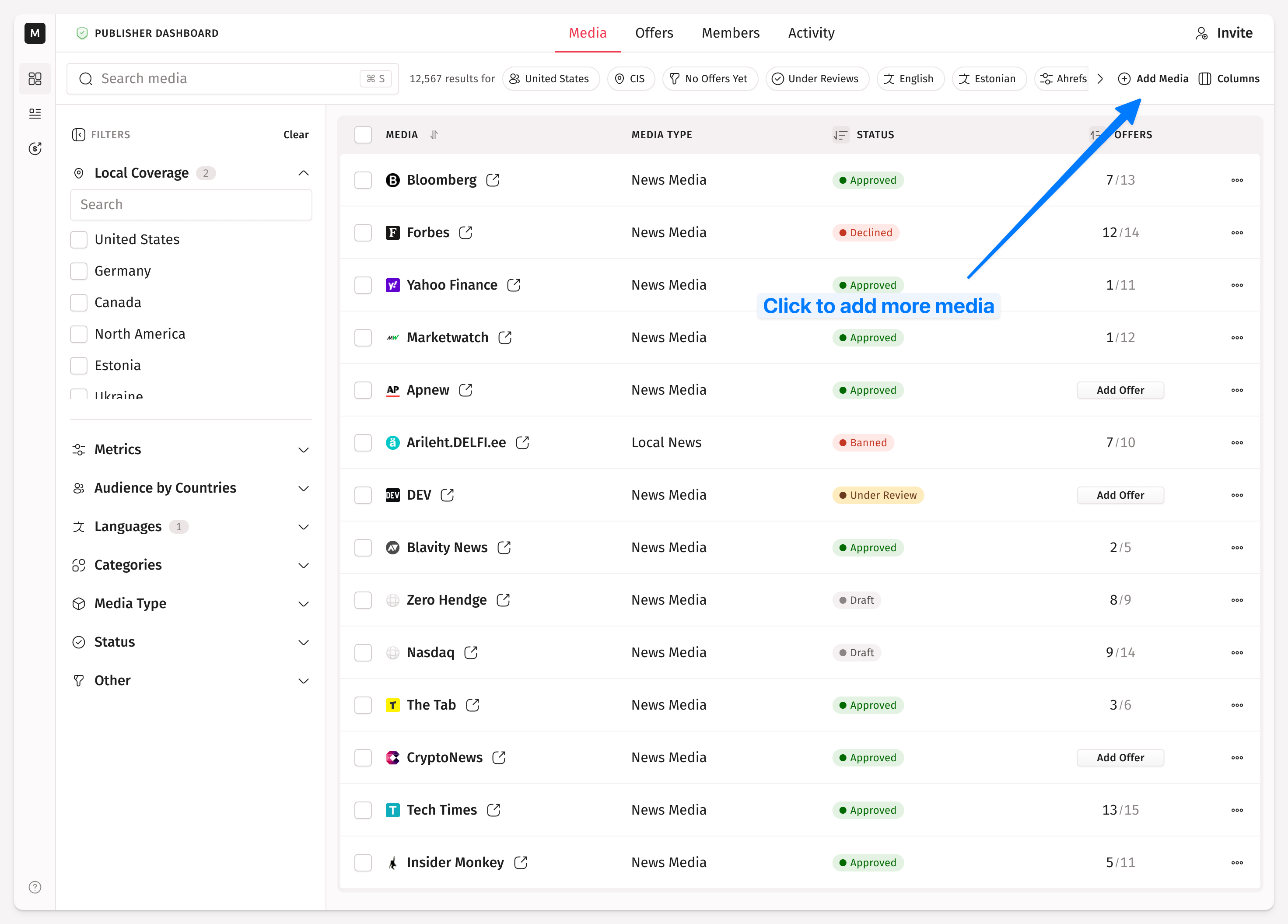
To upload websites in a batch, click Add Media in the top-right corner of your dashboard. A pop-up will appear offering two options: add a single media or add a list. In this case, select Add a List to proceed with the batch upload.
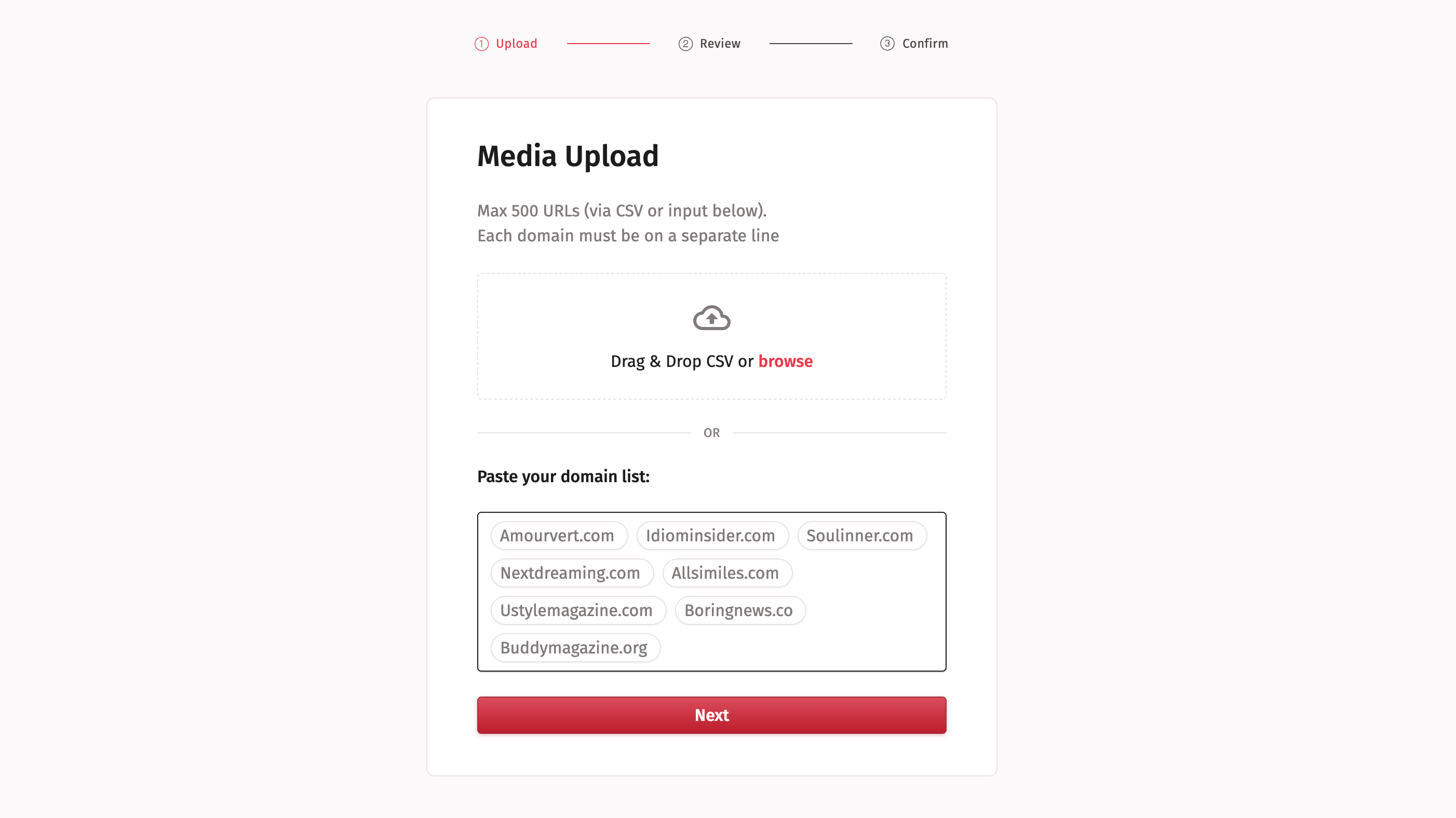
You can either paste the list of media you'd like to upload or attach a CSV file. To continue, press Next.
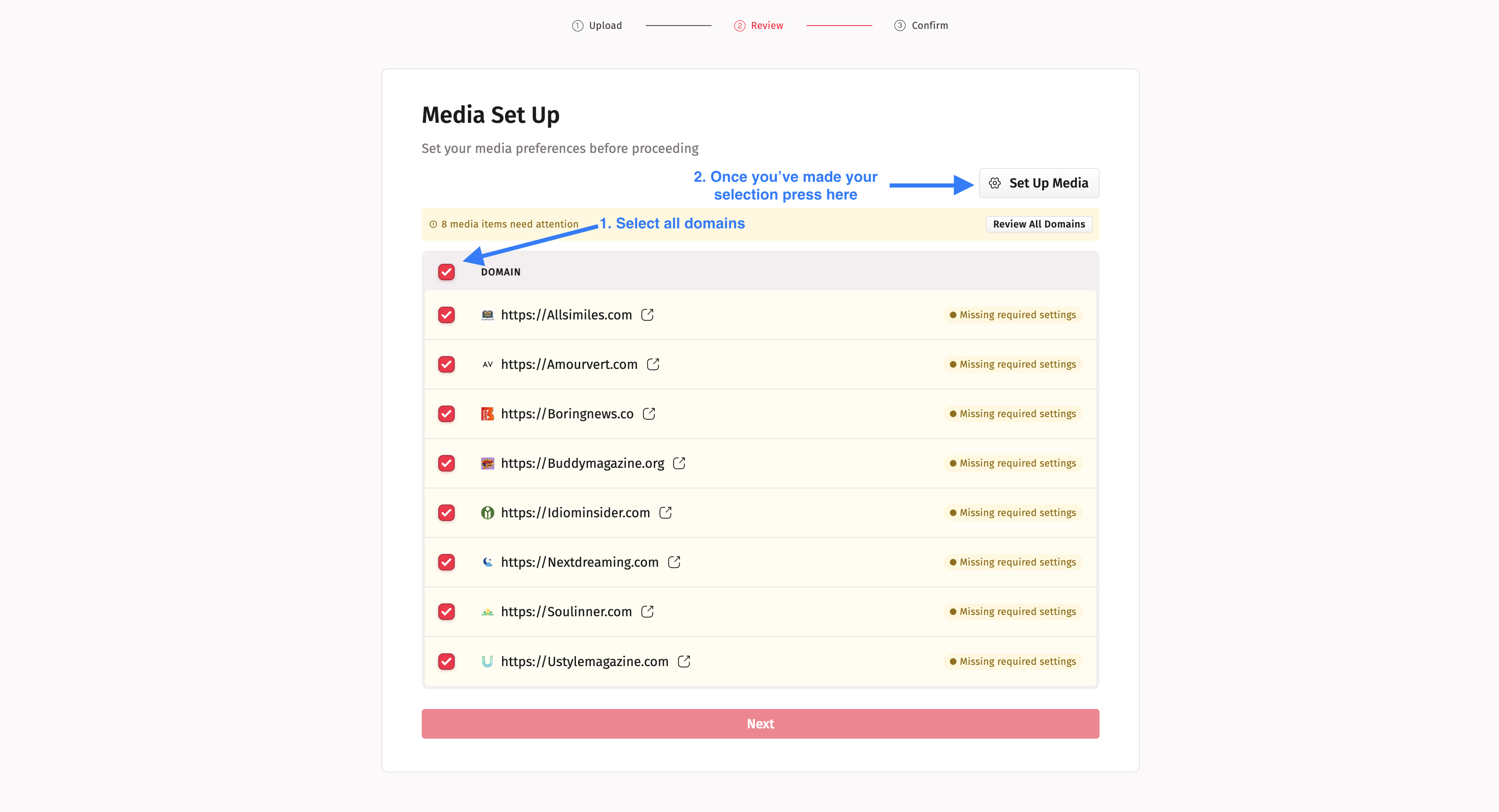
You'll now see the list of media you just added. To continue, select all domains, or choose specific ones if needed, and click Set Up Media.
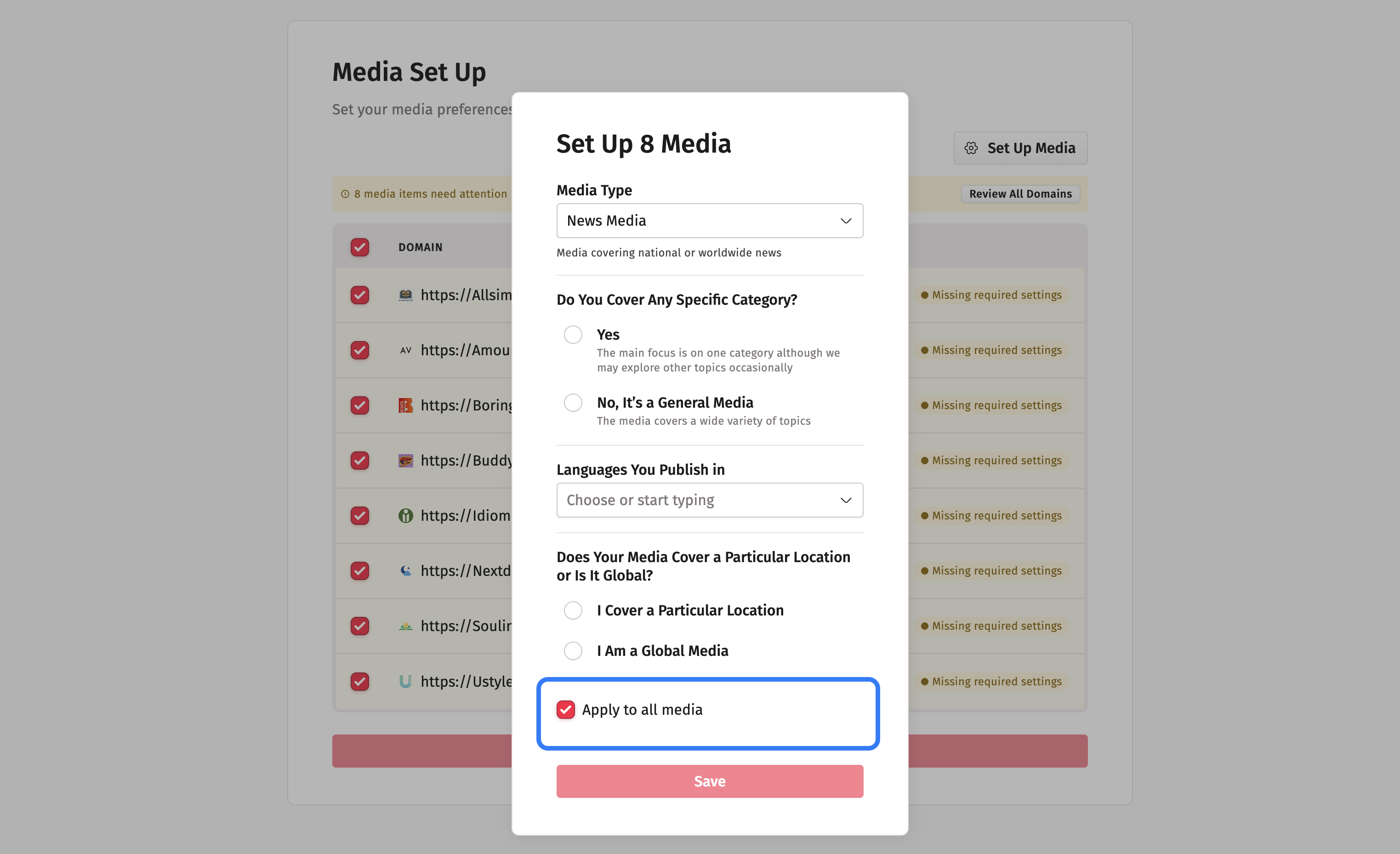
Next, a pop-up window will appear where you can fill in the media details.
You can either apply the same settings to all websites or customize the information for each one individually.
Once you've entered the information, a confirmation window will appear showing that your media are ready. Just click Next to continue.
NB! If you are uploading media with different information, for example varying geo, language, or category, we recommend uploading them in separate batches based on each criterion. This way, you can quickly add media and apply the same details for a specific category or geo.
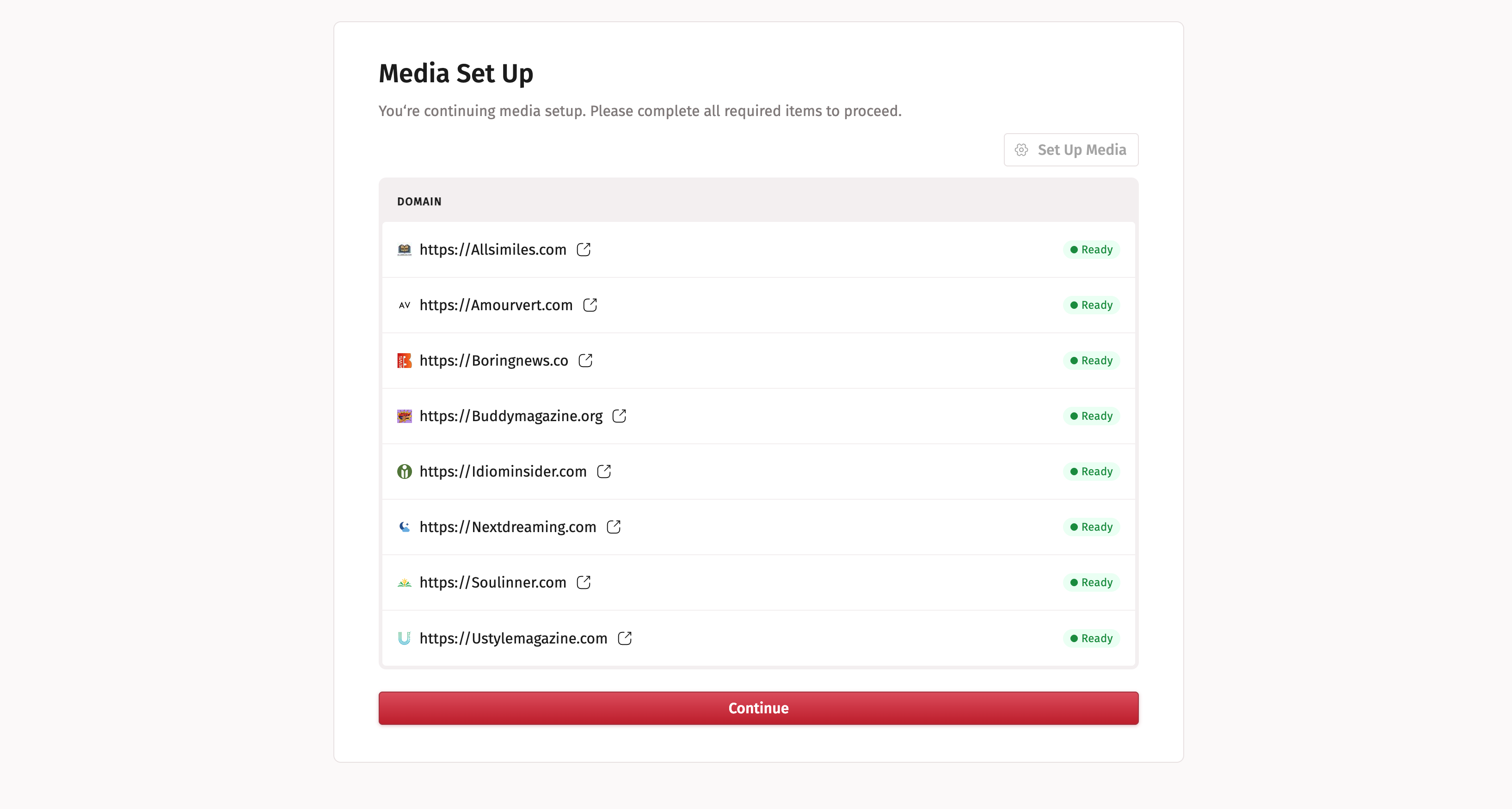
Next, a pop-up will appear letting you know that the Medialister team will review your media. Once approved, you'll be able to proceed with adding your offers.
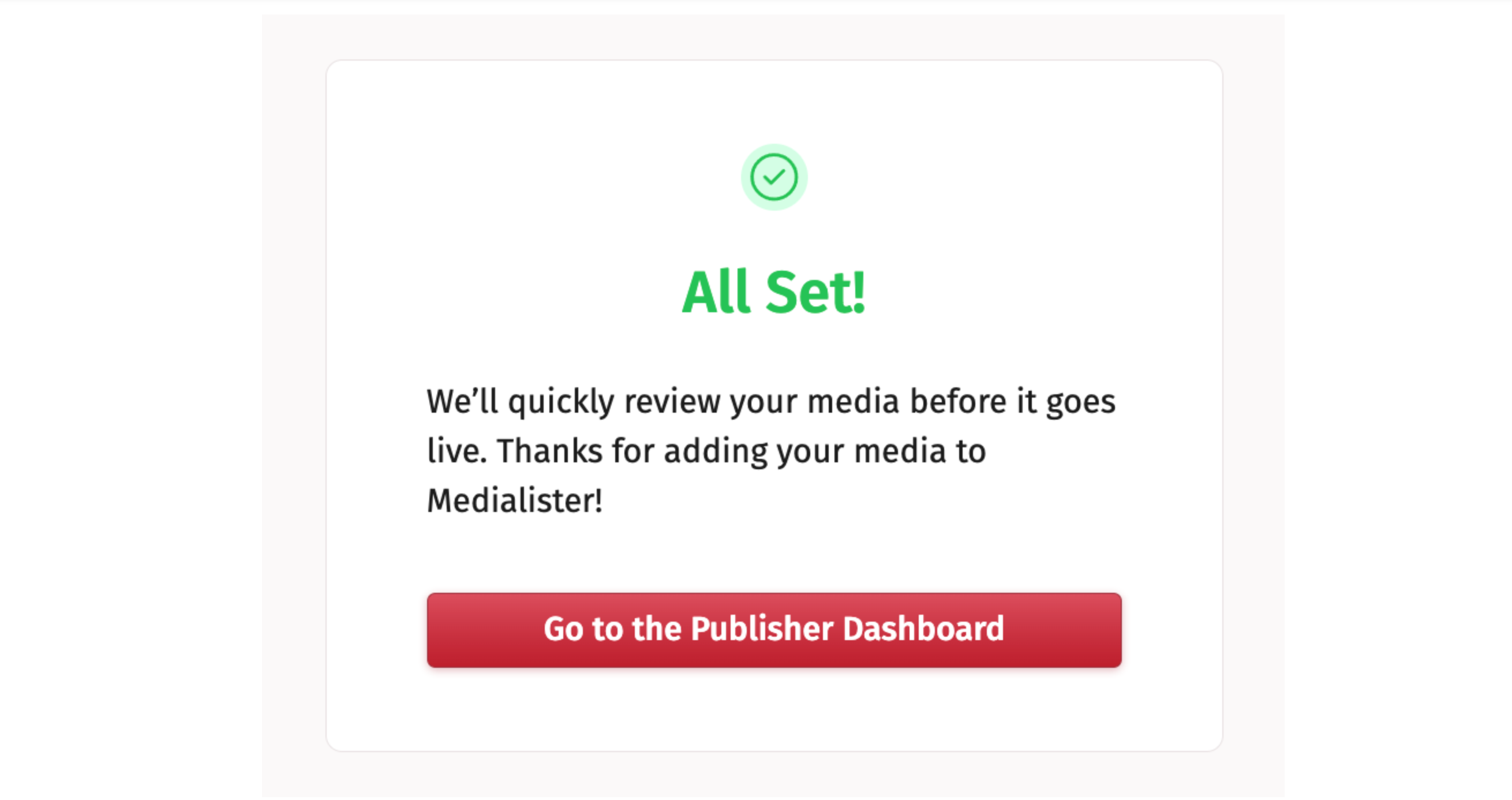
Go to your dashboard and find the newly added media. The status will be set as under review. Our team will quickly review them and once approved you will see the status not listed.
Now proceed adding the offer. Follow this article to learn more on offers: https://roadmap.medialister.com/docs/publisher-dashboard/offers