Marketplace Customizations
Learn how to display different columns and sort by them
You can customize how you see the marketplace by adding and removing columns and setting up different sorting options.
Adding and Removing Marketplace Columns
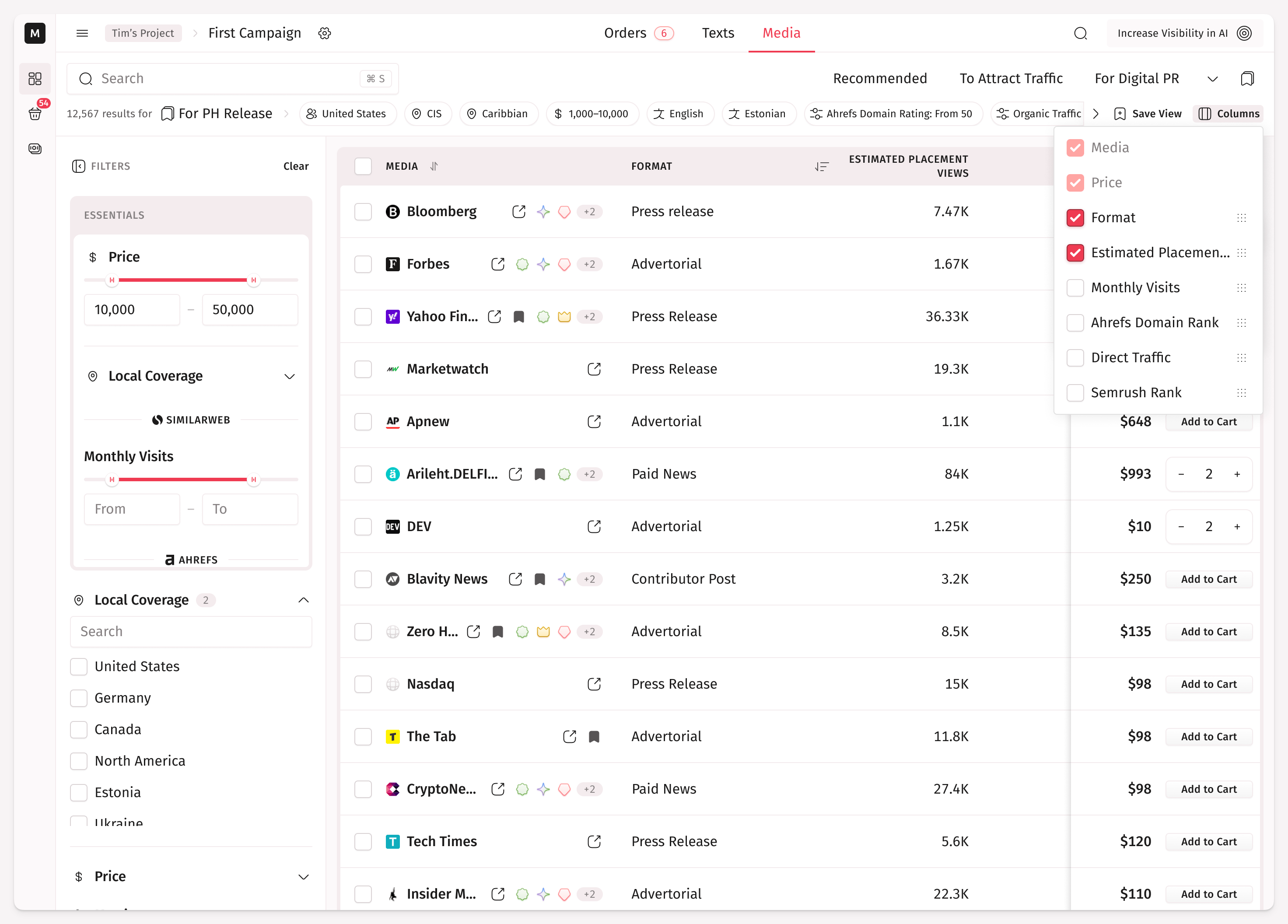
All the columns except Media and Price can be shown or hidden in the marketplace table. To do so, click the button Columns in the marketplace header and tick/untick columns which you want to show/hide.
You can also change the order of the displayed columns by dragging them in the columns management menu via the handlers.
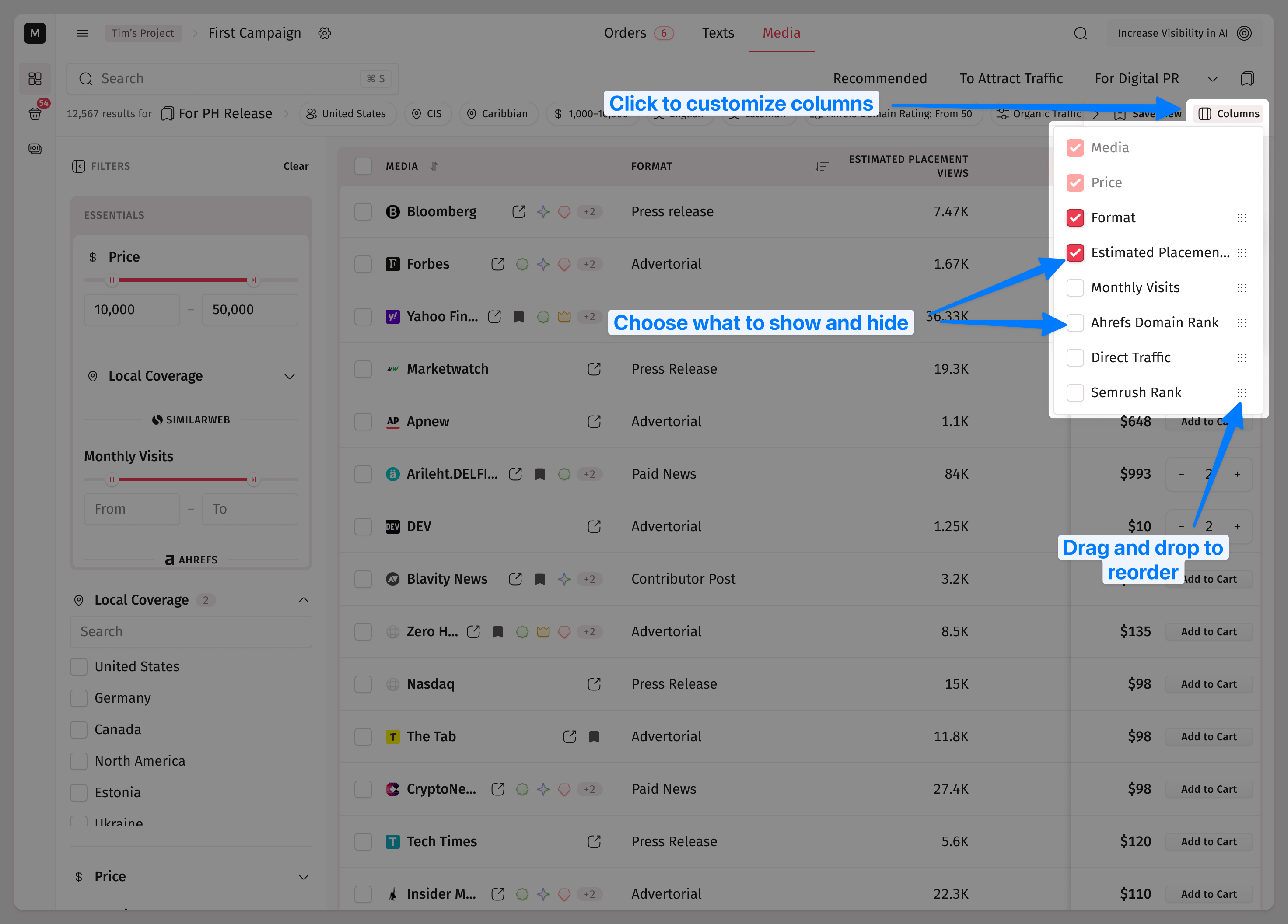
Remember that the order of columns affects their sorting order.
Sorting Options
Most of the columns have the sorting option. Find the double-arrow icon to turn the sorting on. Additional clicks on this icon can set the sorting to either ascending or descending.
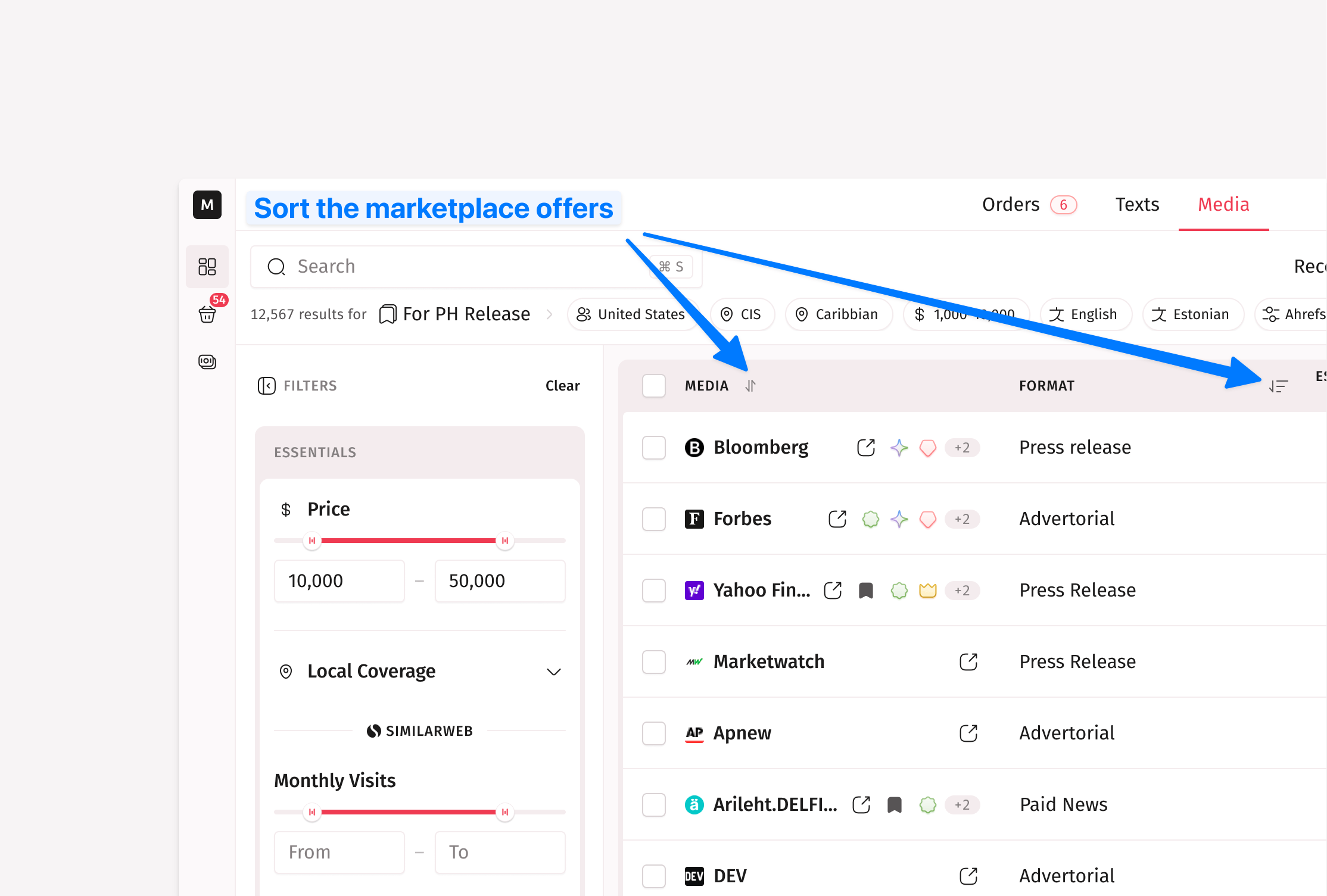
You can set sorting concurrently for multiple columns. In such cases, the sorting follows the from-left-to-right rule (the marketplace is sorted firstly by left columns).
Saving a View
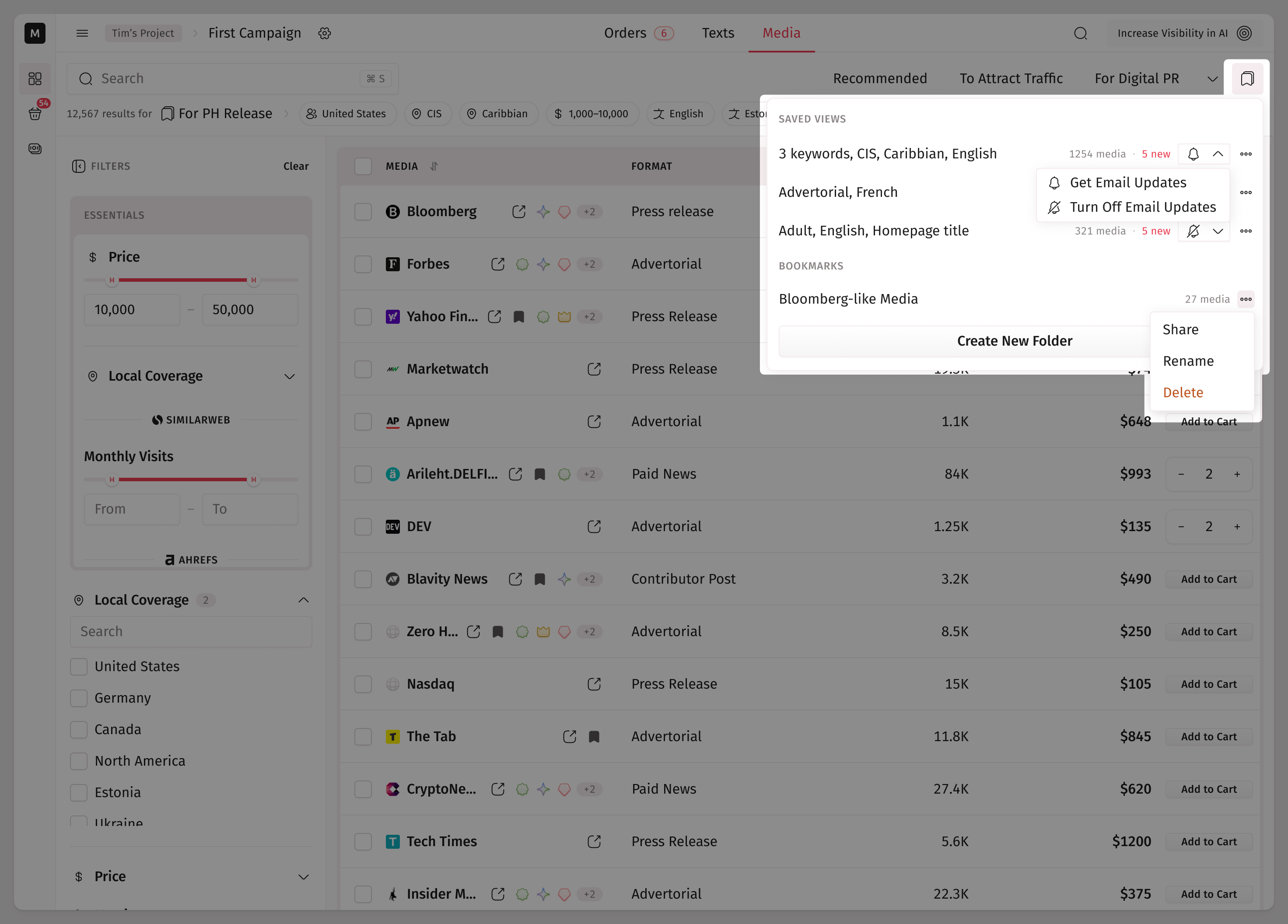
If you want to keep your marketplace sorting options in place, you can use the saved views functionality.
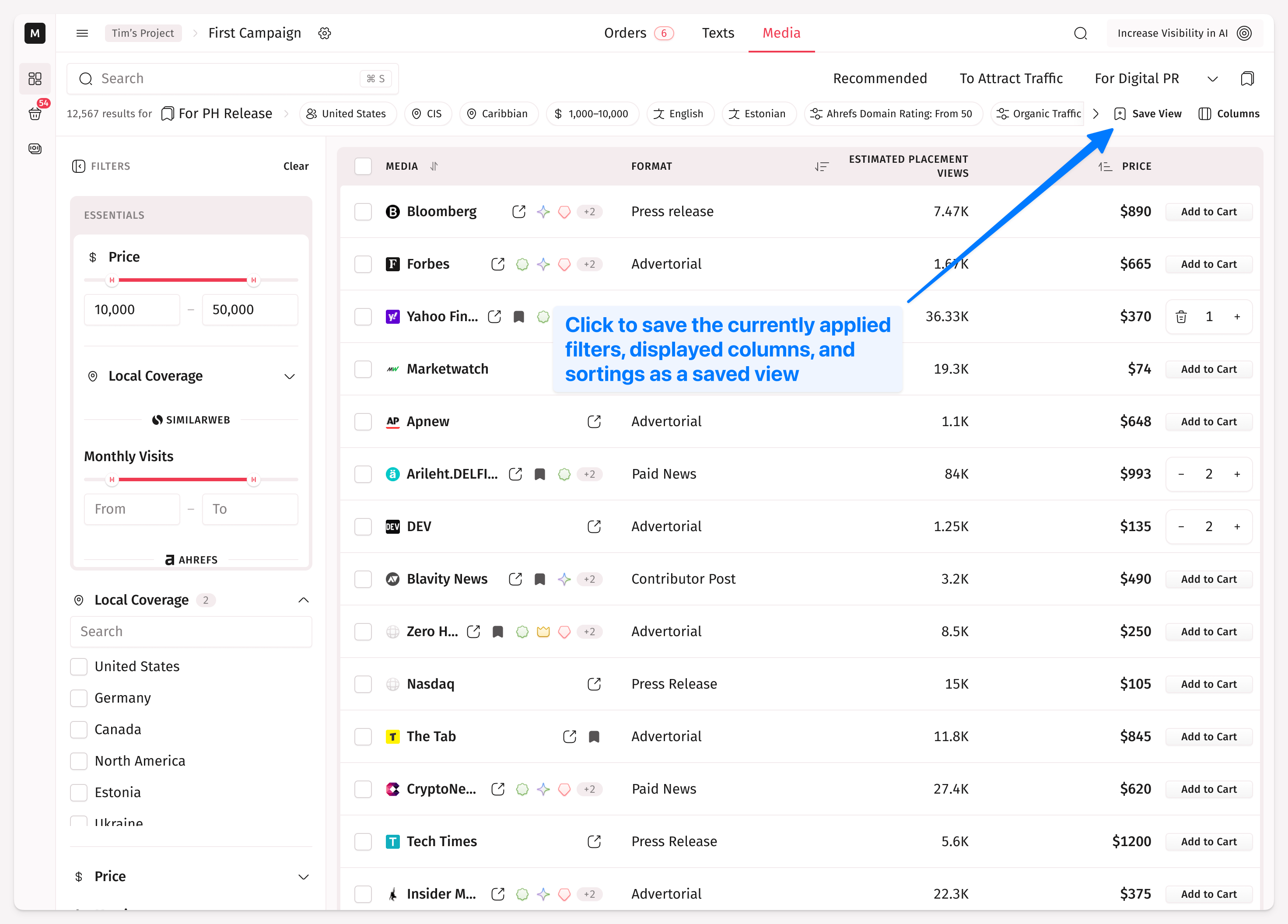
The saved views are located along with the bookmark folders.